



Featured Image Alt Text: n8n Microsoft Teams OAuth2 Integration concept
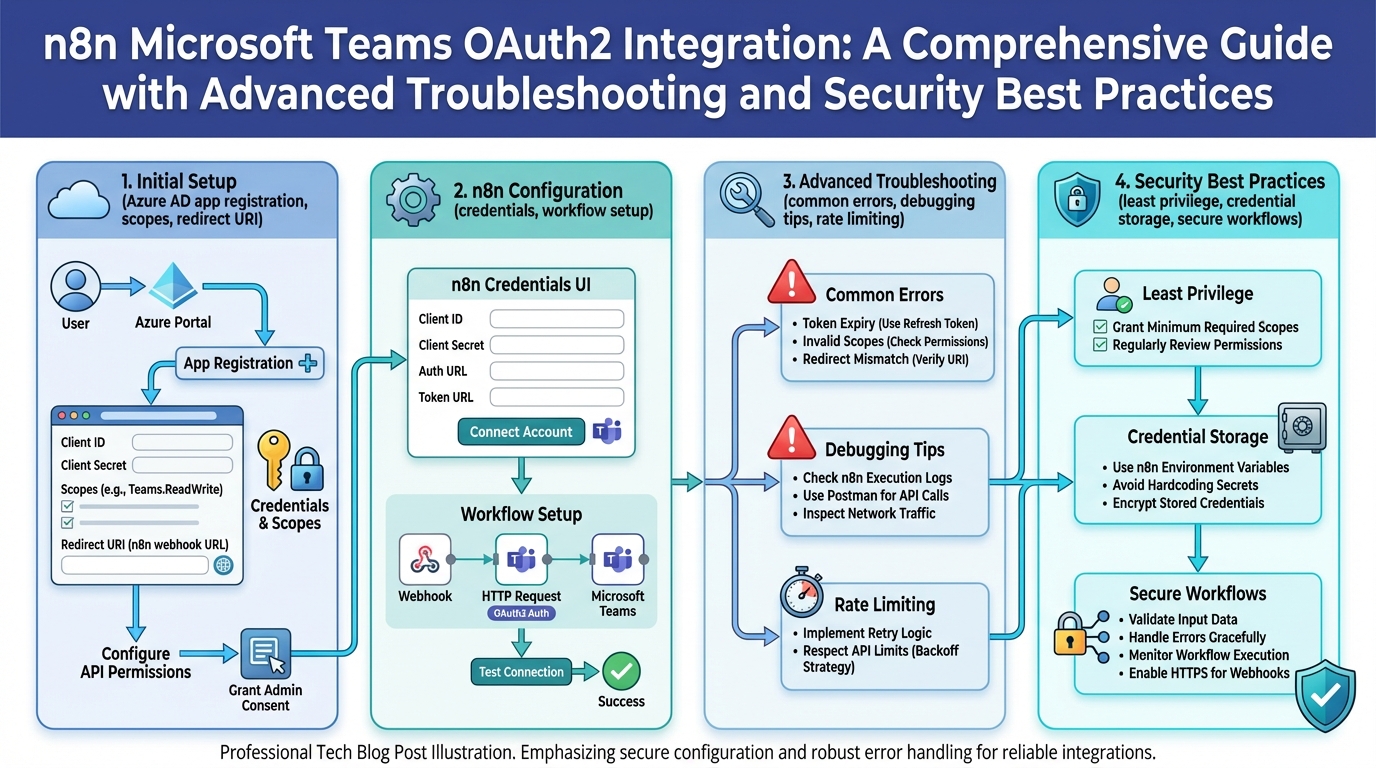
Infographic Alt Text: n8n Microsoft Teams OAuth2 Integration concept
The n8n Microsoft Teams OAuth2 Integration can be a game-changer for automating workflows, but getting it right requires a solid understanding of the underlying concepts. Frustrated with endless configuration screens and cryptic error messages? You’re not alone. Let’s dive into making this integration smooth and secure.
Table of Contents
- Introduction to n8n Microsoft Teams OAuth2 Integration
- Prerequisites for n8n Microsoft Teams OAuth2 Integration
- Configuring OAuth2 for n8n Microsoft Teams
- Setting Up n8n for Microsoft Teams Integration
- Building Workflows with n8n Microsoft Teams
- Advanced Troubleshooting for n8n Microsoft Teams OAuth2 Integration
- Security Best Practices for n8n Microsoft Teams
- Alternatives to n8n Microsoft Teams OAuth2 Integration
- Conclusion
- FAQ
Featured Snippet: n8n Microsoft Teams OAuth2 Integration enables automated workflows between n8n and Microsoft Teams. It uses OAuth2 for secure authentication, allowing n8n to interact with Teams APIs on behalf of a user without storing their credentials. This enhances efficiency and security in automated processes.
Introduction to n8n Microsoft Teams OAuth2 Integration
The n8n Microsoft Teams OAuth2 Integration allows you to seamlessly connect your n8n workflows with Microsoft Teams. This integration leverages the OAuth2 authentication protocol to provide a secure and standardized method for n8n to access Microsoft Teams resources. Think automated notifications, streamlined approvals, and real-time data synchronization. I’ve seen teams save hours each week by automating repetitive tasks using this powerful combination.
Why OAuth2? Because security matters. Storing usernames and passwords directly in your workflow is a recipe for disaster. OAuth2 provides a secure delegation mechanism, allowing n8n to act on behalf of a user without ever knowing their credentials. It’s a significant improvement over older, less secure methods.
Prerequisites for n8n Microsoft Teams OAuth2 Integration
Before you dive into the n8n Microsoft Teams OAuth2 Integration, make sure you have the following in place:
- An Active Microsoft Azure Account: You’ll need an Azure account with permissions to register applications. If your organization uses Microsoft 365, you likely already have this.
- A Microsoft Teams Account: Obviously, you need a Teams account to connect to. Ensure you have the necessary permissions to create and manage channels, teams, and apps.
- A Running n8n Instance: You’ll need a working n8n instance. This can be self-hosted or a cloud-based deployment. Verify it’s accessible and configured correctly.
- Node.js and npm: For installing and managing n8n dependencies. Make sure you have a recent, stable version installed.
These prerequisites are essential for a smooth setup. Skipping any of these steps can lead to frustrating errors down the line. Trust me, I’ve been there. Check out Wikipedia for more general information on these technologies.
Configuring OAuth2 for n8n Microsoft Teams
Configuring OAuth2 is the most crucial step in the n8n Microsoft Teams OAuth2 Integration process. This involves registering an application within your Azure Active Directory and configuring the necessary permissions.
- Register an Application in Azure Active Directory:
- Navigate to the Azure portal and select “Azure Active Directory.”
- Click on “App registrations” and then “New registration.”
- Give your application a meaningful name (e.g., “n8n Microsoft Teams Integration”).
- Select “Accounts in this organizational directory only” for the supported account types.
- Enter a redirect URI. This is the URL where Microsoft will redirect the user after they authenticate. This usually looks like `https://your-n8n-instance/rest/oauth2-credential/callback`.
- Click “Register.”
- Configure API Permissions:
- In your newly registered application, go to “API permissions.”
- Click “Add a permission.”
- Select “Microsoft Graph.”
- Choose “Delegated permissions.”
- Select the necessary permissions for your workflow. Common permissions include `Teams.ReadBasic.All`, `Teams.ReadWrite.All`, `User.Read`, and `User.ReadBasic.All`.
- Click “Add permissions.”
- Grant admin consent for these permissions. This step is crucial for the integration to work correctly.
- Create a Client Secret:
- Go to “Certificates & secrets” in your application.
- Click “New client secret.”
- Give the secret a description and set an expiration date.
- Copy the secret value immediately. You won’t be able to retrieve it later. Store it securely!
This setup is where many people get tripped up. Double-check your redirect URI and API permissions. Incorrect configurations here will lead to authentication errors. Remember to handle your client secret with care; treat it like a password.
Setting Up n8n for Microsoft Teams Integration
Now that you’ve configured OAuth2 in Azure, let’s set up n8n to use the n8n Microsoft Teams OAuth2 Integration.
- Install the Microsoft Teams Connector:
- Open your n8n instance.
- Go to “Settings” and then “Community Nodes.”
- Search for “Microsoft Teams” and install the official connector.
- Create an OAuth2 Credential:
- In n8n, go to “Credentials.”
- Click “Create new.”
- Search for “Microsoft Teams OAuth2.”
- Enter the following information:
- Client ID: The Application (client) ID from your Azure app registration.
- Client Secret: The client secret you created in Azure.
- Authorization URL: `https://login.microsoftonline.com/common/oauth2/v2.0/authorize`
- Access Token URL: `https://login.microsoftonline.com/common/oauth2/v2.0/token`
- Scope: The scopes you configured in Azure (e.g., `Teams.ReadBasic.All Teams.ReadWrite.All User.Read`). Separate multiple scopes with spaces.
- Click “Save.”
- You’ll be prompted to authenticate with your Microsoft account. Follow the on-screen instructions.
The devil is in the details. Ensure your Client ID, Client Secret, and Scopes are entered correctly. A typo can lead to authentication failures. Properly configuring the OAuth2 credential in n8n unlocks the potential of the n8n Microsoft Teams OAuth2 Integration.
Building Workflows with n8n Microsoft Teams
With the n8n Microsoft Teams OAuth2 Integration configured, you can start building powerful workflows. Here are a few examples:
- Send a Message to a Channel:
- Use a “Microsoft Teams” node.
- Select the “Send Message” operation.
- Choose your OAuth2 credential.
- Enter the Team ID and Channel ID.
- Compose your message.
- Create a New Team:
- Use a “Microsoft Teams” node.
- Select the “Create Team” operation.
- Choose your OAuth2 credential.
- Provide the necessary team details (name, description, etc.).
- Add a User to a Team:
- Use a “Microsoft Teams” node.
- Select the “Add User” operation.
- Choose your OAuth2 credential.
- Specify the Team ID and the user’s email address.
These are just a few examples. The possibilities are endless. Experiment with different nodes and operations to create workflows that meet your specific needs. I once built a workflow that automatically posted daily sales reports to a specific Teams channel. It saved the sales team a ton of time.
Remember to handle errors gracefully in your workflows. Use the “Error Trigger” node to catch exceptions and take appropriate action. This can prevent your workflows from crashing and ensure data integrity. Now is a great time to read up on 7 Proven Strategies for H5 Mobile Debugging NIGHTMARES: A Practical Guide to Diagnosing and Fixing the Most Common Performance Bottlenecks (Even on Obscure Devices), so you can better understand the debugging process.
Advanced Troubleshooting for n8n Microsoft Teams OAuth2 Integration
Even with careful configuration, you might encounter issues with the n8n Microsoft Teams OAuth2 Integration. Here are some common problems and their solutions:
- Authentication Errors:
- Problem: “Invalid client ID or secret.”
- Solution: Double-check your Client ID and Client Secret in the n8n credential. Ensure they match the values in your Azure app registration.
- Problem: “Invalid redirect URI.”
- Solution: Verify that the redirect URI in your Azure app registration matches the callback URL in n8n.
- Problem: “Insufficient privileges.”
- Solution: Ensure you have granted the necessary API permissions in Azure and that you have admin consent for those permissions.
- Workflow Errors:
- Problem: “Team not found.”
- Solution: Verify that the Team ID you are using is correct. You can find the Team ID in the Teams URL or using the Microsoft Graph API.
- Problem: “User not found.”
- Solution: Ensure the user’s email address is correct and that the user exists in your organization’s Azure Active Directory.
- Rate Limiting:
- Problem: Workflows failing intermittently.
- Solution: Microsoft Teams API has rate limits. Implement error handling and retry mechanisms with exponential backoff to avoid exceeding these limits. Monitor your API usage in Azure.
Debugging OAuth2 can be tricky. Use the n8n execution log to inspect the requests and responses. This can provide valuable clues about what’s going wrong. Also, consult the Microsoft Graph API documentation for detailed information about error codes and troubleshooting tips. Consider AWS re:Invent 2025: A Builder’s Guide to Matt Garman’s Keynote for parallel insights into similar cloud environments.
Security Best Practices for n8n Microsoft Teams
Security is paramount when working with the n8n Microsoft Teams OAuth2 Integration. Here are some best practices to follow:
- Securely Store Your Client Secret: Never commit your client secret to source control. Use environment variables or a secrets management solution to store it securely.
- Limit API Permissions: Only grant the minimum necessary API permissions to your application. Avoid granting overly broad permissions that could be exploited.
- Regularly Review Permissions: Periodically review the API permissions granted to your application and remove any unnecessary permissions.
- Implement Input Validation: Validate all input data to prevent injection attacks. This is especially important when building workflows that accept user input.
- Monitor API Usage: Monitor your API usage in Azure to detect any suspicious activity. Set up alerts to notify you of unusual usage patterns.
- Use HTTPS: Ensure your n8n instance is running over HTTPS to protect data in transit.
Taking security seriously is not optional; it’s essential. A compromised integration can expose sensitive data and disrupt your business operations. Think about 7+ Proven Strategies for Cybersecurity for SMBs Success in 2025: A Data-Driven Guide. Apply similar principles to your n8n setup.
Alternatives to n8n Microsoft Teams OAuth2 Integration
While n8n Microsoft Teams OAuth2 Integration offers a powerful automation solution, it’s not the only option. Here are a few alternatives to consider:
- Zapier: A popular integration platform with a user-friendly interface. Zapier offers a Microsoft Teams integration, but it may not be as flexible or customizable as n8n.
- IFTTT (If This Then That): A simpler integration platform that’s ideal for basic automation tasks. IFTTT also has a Microsoft Teams integration, but it’s less powerful than n8n or Zapier.
- Microsoft Power Automate: Microsoft’s own automation platform. Power Automate integrates seamlessly with Microsoft Teams and other Microsoft services. However, it may not be as open or extensible as n8n.
- Custom Scripting: You can use the Microsoft Graph API directly to build custom integrations. This gives you the most control and flexibility, but it requires more development effort.
The best option depends on your specific needs and technical expertise. n8n is a great choice if you need a flexible, customizable, and self-hosted solution. Consider the trade-offs carefully before making a decision. Now is a good time to review 7+ Proven Strategies for Minimum Marketable Product (MMP) Success in 2025: Achieving Product-Market Fit Faster with AI and Empathy, and ensure that whatever solution you choose aligns with your broader product strategy.
Data Comparison: n8n vs. Alternatives
| Feature | n8n | Zapier | Power Automate |
|---|---|---|---|
| Pricing | Open-source, self-hosted or cloud | Subscription-based | Subscription-based |
| Customization | High | Medium | Medium |
| Flexibility | High | Medium | Medium |
| Microsoft Teams Integration | Excellent | Good | Excellent |
| Self-Hosting | Yes | No | No |
Conclusion
The n8n Microsoft Teams OAuth2 Integration offers a powerful way to automate workflows and streamline communication. By following the steps outlined in this guide and adhering to security best practices, you can unlock the full potential of this integration. While there may be some initial hurdles, the benefits of increased efficiency and improved collaboration are well worth the effort. Don’t be afraid to experiment and explore the possibilities. The future of work is automated, and n8n can help you get there. I also encourage you to read 7+ Proven Strategies for Tech Pitch for Non-Technical Founders Success in 2025: A Step-by-Step Guide, to better understand how to effectively communicate the value of such integrations.
FAQ
- What is OAuth2?
OAuth2 is an authorization framework that enables applications to obtain limited access to user accounts on an HTTP service, such as Microsoft Teams.
- Why use OAuth2 with n8n and Microsoft Teams?
OAuth2 provides a secure way for n8n to access Microsoft Teams resources without storing user credentials directly.
- What permissions do I need to grant in Azure?
You need to grant the necessary API permissions for your workflow, such as `Teams.ReadBasic.All`, `Teams.ReadWrite.All`, `User.Read`, and `User.ReadBasic.All`.
- What is a redirect URI?
A redirect URI is the URL where Microsoft will redirect the user after they authenticate. This is typically `https://your-n8n-instance/rest/oauth2-credential/callback`.
- How do I troubleshoot authentication errors?
Double-check your Client ID, Client Secret, and redirect URI. Also, ensure you have granted the necessary API permissions in Azure.
- How can I secure my n8n Microsoft Teams integration?
Securely store your client secret, limit API permissions, and regularly review permissions.